


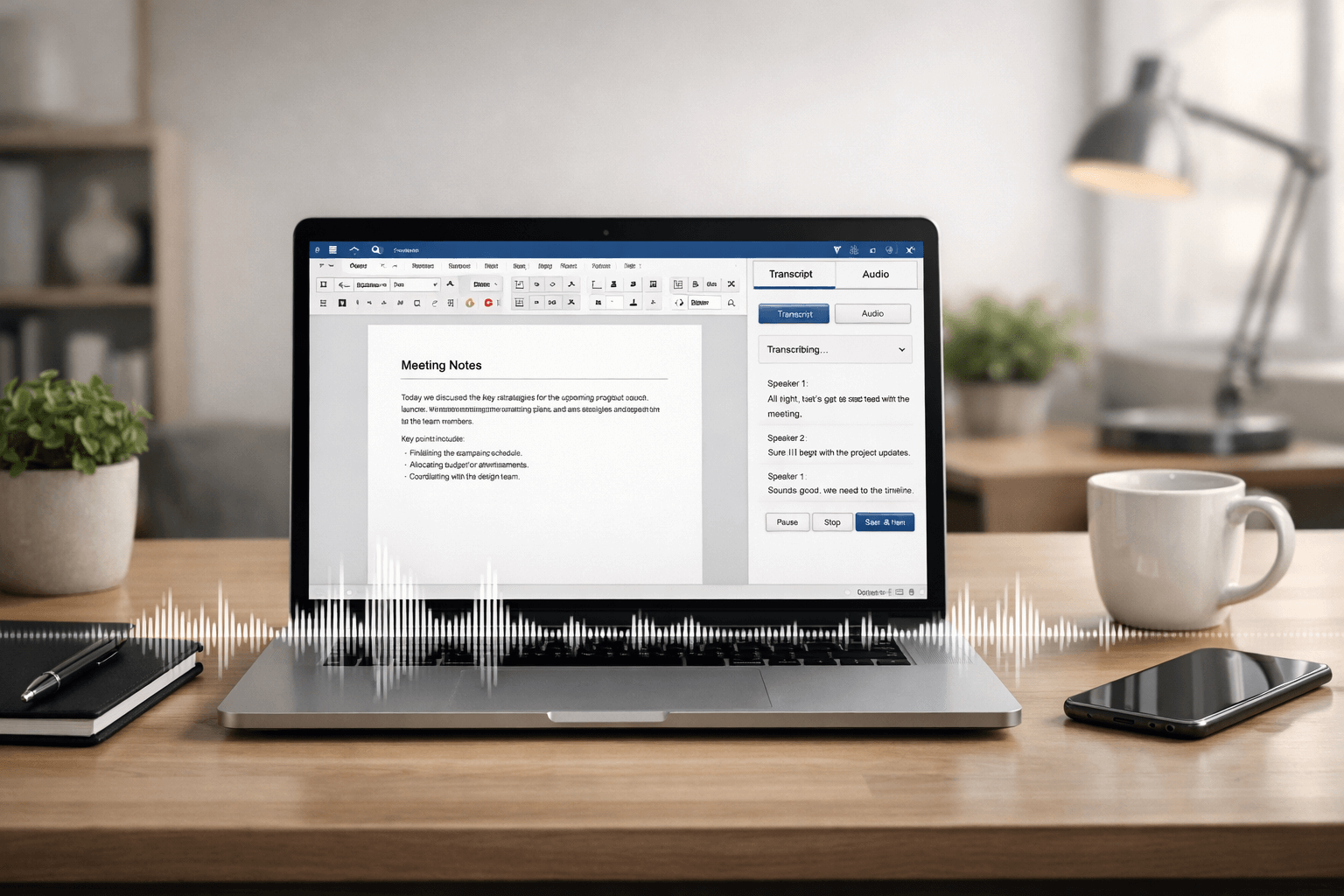
If you’ve ever tried turning an interview, meeting recording, lecture, or voice note into clean text, you already know the pain: rewinding, re-listening, losing your place, and spending far longer than expected.
The good news: Microsoft Word and OneNote can help you transcribe audio into text with speaker labels and timestamps—so you can move from “raw recording” to “ready-to-use notes” much faster.
This guide walks you through:
- How to transcribe on Word (upload or record)
- How to transcribe in OneNote (record, upload, and even ink while recording)
- How to clean up transcripts so they read like a real document
- What to do when the Transcribe option isn’t showing
- A quick fix for “how do I turn off Live Transcribe” on Android (common confusion)
Quick start: the fastest way to transcribe audio into text
If you already have an audio file (MP3, M4A, WAV, MP4):
- Open Word (web) or OneNote
- Find Transcribe
- Choose Upload audio
- Wait for the transcript to generate
- Rename speakers, correct key terms, then insert the transcript into your page/document
If you’re about to record a meeting or interview:
- Open OneNote (best for live notes) or Word
- Start Transcribe and record
- Speak clearly; avoid background noise
- Save and generate transcript
- Convert the transcript into minutes, summaries, or a polished write-up
Before you start (so it works first time)
Use this checklist to avoid the most common “Why isn’t this working?” issues:
- Sign in to the same Microsoft account you use for Word/OneNote
- Allow microphone permissions in your browser/app settings (for recording)
- Keep the Transcribe pane open while the transcript is being created
- Have OneDrive available (transcriptions are stored there)
- Use one of the common supported formats: .wav, .mp4, .m4a, .mp3
- For calls: don’t rely on a headset mic if you need to capture both sides—use a setup that can clearly pick up the room audio
How to transcribe audio into text on Word (upload audio or record live)
Word is ideal when your end goal is a document: an article draft, interview transcript, meeting minutes, or a report.
Option A: Upload an audio file and transcribe it in Word
- Open Word and create a new document
- Go to Home
- Select the Dictate dropdown (microphone area) and choose Transcribe
- In the Transcribe pane, choose Upload audio
- Select your file (MP3/M4A/WAV/MP4)
- Leave the pane open while Word generates the transcript
After it finishes:
- Click any timestamp to play that exact moment
- Rename “Speaker 1 / Speaker 2” into real names (or roles like “Interviewer / Client”)
- Correct important terms (names, addresses, case numbers, medical terminology, brands)
- Insert the transcript into your document:
- Add a section only, or
- Add the full transcript

Option B: Record directly in Word and transcribe as you speak
- Open Word and go to Home → Transcribe
- Choose Start recording
- Speak clearly (or place the mic close to the speaker)
- Pause/resume if needed
- Select Save and transcribe when finished
Best for: quick memos, single-speaker dictation, brainstorming, and “get it down fast” drafting.
How to transcribe audio into text in OneNote (best for meetings + structured notes)

OneNote is a great choice when you want transcription and notes in the same place—especially for meetings, lectures, and research sessions.
Option A: Record and transcribe inside OneNote
- Open OneNote and go to the page where you want your notes
- Go to Home → Transcribe
- Choose Start recording
- Talk, interview, or run your meeting as normal
- When done, select Save and transcribe
What makes OneNote powerful: you can build the page structure while recording (headings, bullet points, action items), then drop transcript sections exactly where you want them.
Option B: Upload audio to OneNote and transcribe it
- Go to Home → Transcribe
- Choose Upload audio
- Select your file (MP3/M4A/WAV/MP4)
- Keep the pane open until it finishes
Option C: Use ink while recording (great for workshops + whiteboard-style notes)
If you use a stylus or like sketching diagrams:
- Start recording with Transcribe
- Write or draw while speaking
- During playback, your ink strokes can replay in sync with the audio
This is extremely useful for training sessions, lectures, and project planning notes.
Turn raw transcription into clean, readable text (in 10–20 minutes)
Automatic transcripts are rarely “publish-ready” on first pass. Here’s a reliable cleanup workflow that produces professional results fast.
Step 1: Choose the right transcript style
Pick one, based on your purpose:
Verbatim (word-for-word):
- Legal matters, disputes, accuracy-sensitive reviews
- Includes filler words, repetitions, false starts
Clean transcript (edited):
- Meetings, business interviews, podcasts, blogs
- Removes “um/uh,” fixes obvious grammar, keeps meaning intact
Summary transcript:
- Executive briefs, stakeholder updates, lecture notes
- Captures decisions, key points, action items
If your transcript will be used for official purposes, a professionally prepared transcript is safer than relying on automatic output (more on that below).
Step 2: Fix speaker names first
Do this before anything else.
- Rename speakers consistently (e.g., “Ben,” “Client,” “Solicitor,” “Doctor”)
- If a speaker label is wrong in multiple places, correct it everywhere
Step 3: Clean the transcript for readability
Use quick wins:
- Remove repeated filler words (but don’t over-edit if you need accuracy)
- Break long paragraphs into shorter ones
- Add headings like Discussion, Key Decisions, Next Steps
- Standardise numbers/dates (e.g., “30 January 2026” vs “Jan 30”)
Step 4: Create a “decision + action” block (instant meeting minutes)
At the top of your document/page, add:
Decisions
- Decision 1
- Decision 2
Action items
- Task — Owner — Due date
- Task — Owner — Due date
Then insert only the most relevant transcript sections beneath. This makes your transcription instantly useful.
Accuracy upgrades (small changes that make a big difference)

Want noticeably better transcription without changing tools? Focus on the input quality.
- Get the mic closer to the speaker (distance matters)
- Reduce background noise (fans, AC vents, cafés)
- One speaker at a time (overlap confuses speaker separation)
- Ask people to say names clearly (especially surnames and organisations)
- Speak punctuation for dictation-style work (for example: “new line”, “comma”, “full stop”)
- If recording a virtual call: test your setup so it captures both sides clearly
Common problems (and quick fixes)
“I can’t see Transcribe in Word/OneNote”
Try these fixes in order:
- Confirm you’re signed into the right Microsoft account
- Update your browser/app and restart
- Look under Home near Dictate or Record
- If you have multiple Microsoft accounts, switch accounts and check again
“Microphone won’t work”
- Allow microphone permissions in your browser/app
- Close other apps that may be using the mic
- If you’re on Windows, check system microphone privacy settings
“It’s stuck processing”
- Keep the Transcribe pane open
- Check internet connection stability
- If the file is long, it may take roughly the length of the audio (sometimes longer)
“Speaker labels are wrong”
This is common with similar voices or overlapping speech.
- Rename speakers manually for clarity
- If it’s high-stakes (legal/medical), consider professional transcription
When built-in tools aren’t enough (and what to do instead)
Word and OneNote are excellent for drafting and internal notes. But if your transcript is going to be used for anything sensitive or official, you need more control.
Consider a professional service when you need:
- Legal transcription (hearings, statements, solicitor/client interviews)
- Medical transcription (clinical notes, reports, patient interviews)
- Time-stamped transcripts for editing, research, or evidence review
- Strict confidentiality (GDPR-sensitive content)
- High accuracy across multiple speakers and poor audio conditions

If that’s you, use a specialist service like UK Certified Translation’s transcription team: verbatim, clean, time-stamped, legal, medical, plus speaker identification—delivered with a secure workflow and quality checks.
Get started here: Transcription services in the UK
“Their legal transcription was flawless and securely handled.” — Solicitor James Turner
“Great service for our podcast episodes—time-stamps made editing a piece of cake.” — Emily Foster, Podcast Producer
And if your transcript needs to be submitted internationally or paired with an official translation, you can combine it with:
For complex multilingual meetings, add interpreting support or message the team directly via the contact page.
How do I turn off Live Transcribe? (Android)

People often mix up:
- Word/OneNote Transcribe (Microsoft feature for documents/notes)
- Live Transcribe (Android accessibility feature for real-time captions)
To turn off Live Transcribe on most Android phones:
- Open Settings
- Tap Accessibility
- Tap Live Transcribe
- Turn it off (or disable the accessibility shortcut)
If it keeps popping up, also remove its shortcut:
- Accessibility button shortcut
- Quick Settings tile
- Volume key shortcut (if enabled)
If you only want it to stop saving text:
- Open Live Transcribe → Settings → turn Transcription history off
FAQs
How to transcribe audio into text in Word?
Open Word, go to Home, choose Transcribe, then upload an audio file (MP3/M4A/WAV/MP4) or record live. After it generates, edit speaker labels and insert the transcript into your document.
How to transcribe in OneNote?
Open OneNote, go to Home, select Transcribe, then start recording or upload audio. Once finished, save and generate the transcript, then place sections into your notes where they belong.
How to transcribe on One Note and keep it organised?
Create headings first (Agenda, Discussion, Decisions, Next Steps), then insert transcript sections under each heading. Rename speakers early and convert key moments into action items.
Why can’t I see Transcribe in Word?
It may be account- or version-related. Confirm you’re signed in, update Word/your browser, and look under Home near Dictate. If it still doesn’t show, switch accounts and check again.
How do I turn off Live Transcribe?
On Android: Settings → Accessibility → Live Transcribe → turn it off (and disable/remove the shortcut if needed).
Is Word/OneNote transcription accurate enough for legal or official use?
For internal notes, often yes. For official, sensitive, or evidence-grade transcripts, use professional transcription with quality checks and confidentiality controls.