


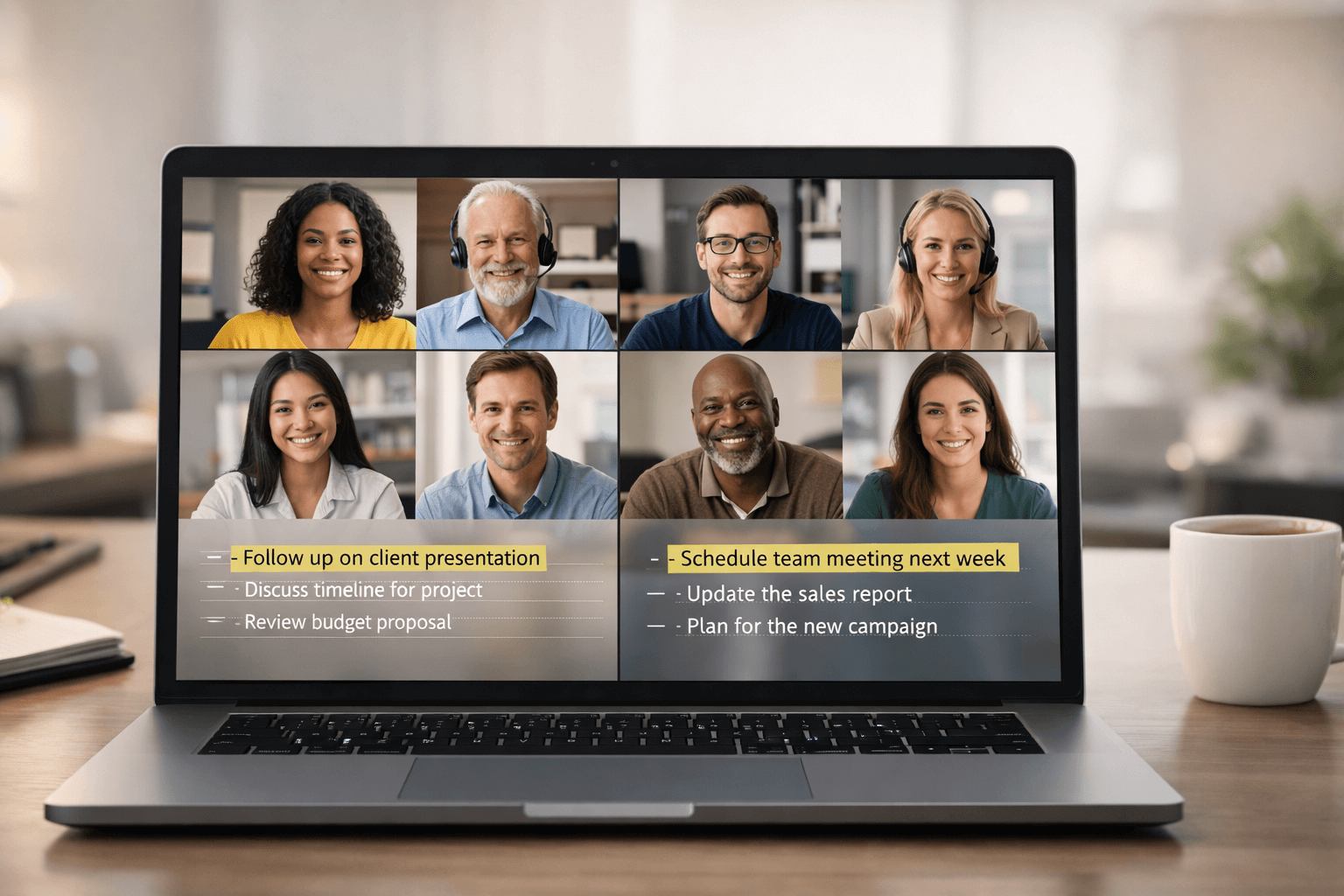
If you’ve ever finished a meeting and thought, “Wait—what did we agree on?” you’re not alone. Recordings and transcripts turn fuzzy recollections into a clear, shareable record—so decisions stick, action items don’t get lost, and people who couldn’t attend can catch up fast.
This guide walks you through how to record and transcribe on Microsoft Teams and Zoom, then shows you a practical workflow for turning transcripts into clean meeting minutes—including a “free” method you can use with the tools you already have.
The 60-Second Setup Checklist (Do This Before the Meeting)
Before you hit Record, do these quick checks—your transcript quality will improve immediately:
- Confirm permissions: Are you allowed to record/transcribe in your organisation’s settings?
- Tell attendees up front: Recording and transcription should never be a surprise.
- Use one “main mic”: If you’re in a room, pick the best microphone and keep side conversations away from it.
- Ask speakers to identify themselves: “Hi, it’s Sam—quick update…” helps the transcript label speakers.
- Agree what you’re capturing: Full verbatim record, or minutes-style summary?
If you’re recording sensitive discussions (HR, legal, medical, disciplinary, confidential commercial), consider using a professional service for accuracy and confidentiality rather than relying on auto-transcription.
A Quick Note on Privacy, Consent, and Good Meeting Etiquette
Recording and transcription can contain personal data (names, voices, opinions, even special category data). A few practical rules keep things smooth:
- Say it clearly at the start: “This meeting will be recorded and transcribed for internal notes and action items.”
- Explain the purpose: minutes, training, project documentation, compliance, etc.
- Offer an alternative for anyone uncomfortable (e.g., camera off, contribution via chat, or follow-up offline).
- Store recordings securely and restrict access to those who genuinely need it.
- Set a retention period: delete when it’s no longer needed.
Copy-paste announcement (host script):
“Just a heads-up: I’m going to start recording and transcription now so we can capture decisions and action items accurately. The recording and transcript will be shared only with attendees and stored securely.”
Recording + Transcribing in Microsoft Teams (Step-by-Step)

Start a Recording in Teams
Inside the meeting window:
- Open the More actions menu (the three dots).
- Choose Record and transcribe.
- Select Start recording.
Tip: If you can’t see recording options, it’s usually down to meeting role permissions, licensing, or your organisation’s admin policies.
Turn On Live Transcription in Teams
In the same Record and transcribe menu:
- Select Start transcription.
- Keep the transcript panel open if you want participants to follow along live.
Transcript quality upgrades that actually work:
- Ask people to mute when not speaking
- Encourage one person at a time
- Use headsets for remote participants
- Keep room speakers away from the microphone (reduces echo)
Find, Download, and Share the Teams Transcript
After the meeting ends, Teams typically makes a recap available where you can view and download the transcript.
To keep things organised:
- Save the transcript as .docx for editing into minutes
- Keep a copy of the original .vtt (useful for timecodes and video alignment)
Pro move: Create a simple naming convention:
- ClientName_Project_YYYY-MM-DD_MeetingTitle
- Example: Acme_Retention_2026-01-30_Q1Kickoff
Troubleshooting (Teams)
If something isn’t working, these quick fixes solve most issues:
- No “Record and transcribe” option
- You may not be the organiser/presenter, or recording is disabled by policy.
- Transcript button appears but doesn’t generate
- Try restarting transcription, check audio settings, and ensure speakers are using a single clear audio source.
- People worry about being recorded
- Re-state the purpose, reduce access, and confirm retention/deletion timelines.
If you need an accurate transcript without the friction of settings, permissions, or inconsistent audio, you can skip the tech headache and use a professional service.
Need a clean, time-stamped transcript you can rely on?
Use our transcription services in the UK for accurate verbatim or edited transcripts—delivered fast with a secure, GDPR-aligned workflow.
How to Transcribe a Meeting on Zoom (3 Practical Methods)

Zoom gives you a few ways to capture meeting content. The best option depends on whether you need live captions, a downloadable transcript, or a transcript tied to a cloud recording.
Method 1: Live Captions + “Full Transcript” (Great for Minutes)
If automated captions are enabled for your meeting:
- Start the meeting.
- Turn on captions (or ask the host to enable them).
- Open the full transcript panel.
- Save the transcript near the end of the meeting to capture everything.
This method is excellent when you want meeting minutes without necessarily creating a full cloud recording—depending on account settings.
Method 2: Cloud Recording + Audio Transcript (Best for a Permanent Record)
If your meeting is recorded to the Zoom cloud, Zoom can generate an audio transcript associated with that recording.
Typical workflow:
- Record the meeting to the cloud.
- When processing completes, open Recordings & Transcripts.
- View the transcript beside the recording.
- Download the transcript file for editing/sharing.
This is best when you want a lasting source record (audio/video) and a transcript that matches it.
Method 3: Local Recording + External Transcription (Best for Full Control)
If you record locally, transcription usually needs a separate tool or workflow:
- Upload the audio to a transcription tool you trust
- Or use a document-based transcriber to convert audio into text
- Then edit into minutes
If the discussion is sensitive or needs high accuracy, consider professional transcription rather than auto-generated text.
Want a transcript that reads like a polished document—not a robot draft?
Upload your Zoom recording and get a clean, time-stamped transcript via our UK transcription service.
The “Meeting Minutes” Workflow (Simple, Fast, and Often Free)
You don’t need complicated software to get great minutes. The winning approach is:
- Capture
- Transcribe
- Clean
- Summarise into minutes
- Assign actions
- Share
Step 1: Capture Better Audio (So the Transcript Doesn’t Fight You)
- Use a headset mic if you can
- Ask speakers to pause after key decisions
- Repeat action items out loud: “To confirm, Alex owns the draft by Tuesday.”
Step 2: Transcribe (Teams or Zoom First)
If built-in transcription is available, start there. It’s fast and keeps everything linked to the meeting.
If it isn’t available, use an audio-to-text workflow—then bring the output into your minutes template.
Step 3: Clean the Transcript in 10 Minutes (Not 60)
Aim for edited minutes, not a perfect verbatim transcript.
Quick clean rules:
- Delete filler (“um”, “you know”)
- Fix names and key terms (products, projects, client names)
- Add headings where the topic shifts
- Keep timestamps only where they matter (decisions, key risks)
Step 4: Turn the Transcript into Proper Minutes (Template)
Copy this into your doc and fill it in using your transcript.

Meeting Minutes Template (copy/paste):
Meeting:
Date/Time:
Attendees:
Apologies:
Purpose:
Key Decisions
- Decision 1 — Owner — Date
- Decision 2 — Owner — Date
Discussion Summary (by topic)
- Topic A:
- Summary:
- Notes/Risks:
- Topic B:
- Summary:
- Notes/Risks:
Action Items
- Action — Owner — Due date
- Action — Owner — Due date
- Action — Owner — Due date
Parking Lot (not decided today)
- Item — Owner to follow up
Next Meeting
- Date/Time:
- Agenda focus:
Step 5: Share Minutes the Same Day (The Momentum Hack)
Send minutes within a few hours—while the conversation is still fresh.
Copy-paste follow-up email snippet:
“Thanks all—attached are the decisions and actions from today. If anything looks off, reply by tomorrow 12:00 and we’ll update the record.”
Built-In vs AI vs Human Transcription (Which One Should You Use?)

Here’s the honest trade-off:
- Built-in (Teams/Zoom): fast, convenient, good enough for many internal meetings.
- AI meeting assistants: helpful summaries and automation, but data handling varies—check privacy carefully.
- Human transcription: best when accuracy, formatting, and confidentiality are non-negotiable.
If you’re creating a formal record (legal, disciplinary, clinical, compliance, stakeholder disputes), a human-checked transcript is usually the safest route.
What clients often choose for important meetings:
- Verbatim transcript for the record
- Edited transcript for readability
- Time-stamped transcript for review and evidence trails
That’s exactly what we deliver through our transcription service—with multi-stage quality checks, GDPR-aligned handling, and optional NDAs.
Add a Multilingual Layer (Translate the Transcript or Minutes)

If your attendees work across regions, translating minutes can prevent expensive misunderstandings.
Common use cases:
- Internal UK HQ ↔ overseas teams
- Compliance briefings across multiple countries
- Client-facing minutes where English isn’t the stakeholder’s first language
For official or sensitive documents, use a qualified language service rather than raw machine translation.
- For translated meeting minutes, use certified translation services
- For bilingual meetings in real time, explore interpreting services
Real-World Proof (What Clients Care About)
When meetings matter, clients typically want three things: accuracy, speed, and privacy.
“Exactly what our research team needed.” — Dr. Anna Williams, University Researcher
“Their legal transcription was flawless and securely handled.” — Solicitor James Turner
“Great service for our podcast episodes—time-stamps made editing a piece of cake.” — Emily Foster, Podcast Producer
If you want meeting transcripts you can confidently share, store, or rely on in high-stakes settings, send your file and we’ll take it from there via our UK transcription team.
Wrap-Up: The Best Meeting Notes System Is the One You’ll Actually Use
If you want better meetings, don’t overcomplicate it:
- Record the meeting (when appropriate)
- Turn on transcription
- Convert transcript → minutes using a simple template
- Share decisions + action items fast
- Store securely and delete when no longer needed
And when accuracy or confidentiality is critical, bring in professionals and make the record rock-solid.
Ready to turn your next meeting into clear, shareable minutes—without the admin hassle?
Start with a fast, secure quote on our transcription services page or reach us via contact.
FAQ Section
How do I record and transcribe on Teams during a meeting?
Open the meeting controls, choose Record and transcribe, then start recording and transcription. After the meeting, use the recap area to access and download the transcript.
How to transcribe on Teams if I can’t see the option?
If you can’t see transcription, it’s usually due to meeting role permissions, licensing, or organisation policies. Ask the organiser to make you a presenter or confirm transcription is enabled by your admin.
How to transcribe a Teams meeting after it ends?
If transcription was enabled during the meeting, you can typically open the meeting recap and download the transcript (often as a document file for editing into minutes).
How to transcribe a meeting on Zoom and save the transcript?
If live captions are enabled, open the full transcript panel during the meeting and use the save option. If you recorded to the cloud, you can download the audio transcript from the recordings area.
How to record and transcribe meeting minutes free (or with tools you already have)?
Use built-in Teams/Zoom transcription if available, then paste the output into a minutes template and edit for clarity. If built-in transcription isn’t available, transcribe the audio with a trusted tool and summarise into decisions and action items.
What’s the best way to get accurate meeting transcripts for legal or sensitive meetings?
For high-stakes meetings, use professional transcription with secure handling, optional NDAs, and quality checks—especially when the transcript may be shared, stored long-term, or relied on formally.